Reports
To access reports, select Modules > Reports.
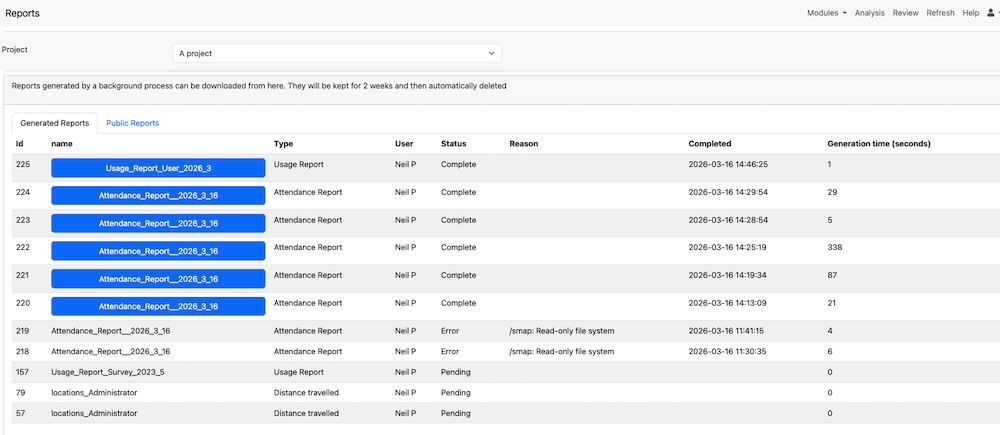
Reports Page
There are two tabs on this page. One shows generated reports that are available to download. The other shows public reports that can be accessed by anyone who has the URL.
Generated Reports
Some administrative reports take a while to run, so they are processed in the background instead of downloading immediately. When a report is ready, you can download it from this tab. Generated reports are kept for 2 weeks before they are deleted automatically.
Public Reports
Public reports show data such as survey submissions. You can configure a report with filters and time ranges, then run it whenever you need the latest data.
Click Add Report to create a report. Supported report types are XLS and PDF. Give the report a name so it is easy to identify.
To create and use a public report:
Click Add Report.
Select the report type and name it.
Configure filters and time range.
Save, then run the report.
Share the report URL if needed.
A key difference between reports and simple exports is that a report link can be sent to someone who does not have an account on the system. They can use the URL to download the latest data.
Reports can also be attached to./ periodic notifications. In this case, any date range set in the report is ignored. The notification date range is used instead.
From the report actions menu, you can run, edit, or delete a report.
Administrative Reports
Administrative reports are available in various modules, for example the admin module. If a report takes a long time to run, its output can be downloaded later from the Reports module. Otherwise, data is shown immediately after the report is requested.